Optional: collect pledges first
If you want to gauge demand before printing, create a public reservation page and use pledge totals to plan your first print quantity.

Cookbook fundraiser platform
Create a cookbook together in the web portal, then choose how to raise funds: collect optional pledges, print in bulk, or sell through a storefront.
Useful for PTAs, churches, teams, schools, clubs, nonprofits, and community groups.
There is no required sequence. Choose one path, or combine them: use pledges only if you want to measure interest before printing, fulfill a bulk order yourself, or sell through a paid online storefront after a successful print order.
| Path | Best use | What you need | How payment works |
|---|---|---|---|
| Optional pledge campaign | Measure interest before you print. | No printed book, Order ID, Seller account, or Stripe setup. You can later choose bulk fulfillment or a storefront. | ReciScan does not collect payment; the organizer follows up and collects it offline. |
| Bulk fundraiser | Order books and distribute them through pickup, events, or local delivery. | Place your print order. You do not need a pledge campaign, Seller account, or Stripe. | The organizer handles payments and distribution. |
| Online storefront | Offer ongoing print-on-demand sales without holding inventory. | A successful printed order, Seller setup, and Stripe payouts. You do not need a pledge campaign. | Buyers pay online through Stripe checkout. |
If you choose pledges: a pledge is not a purchase. The campaign price is an estimate, no card is charged, and the organizer must communicate the final price, payment method, delivery timing, and any changes.
If you want to gauge demand before printing, create a public reservation page and use pledge totals to plan your first print quantity.
Skip pledges if you prefer. Order a proof, place a batch order when you are ready, and distribute books through pickup, events, school, church, or community delivery.
After a successful print order, add the book to a ReciScan storefront. Buyers can then pay online and order printed copies—whether or not you ever used pledges.

Collect recipes from families, members, players, parishioners, students, or supporters.
Use the Portal to run multiple campaigns, monitor copy pledges, track offline payments, and export supporter details.
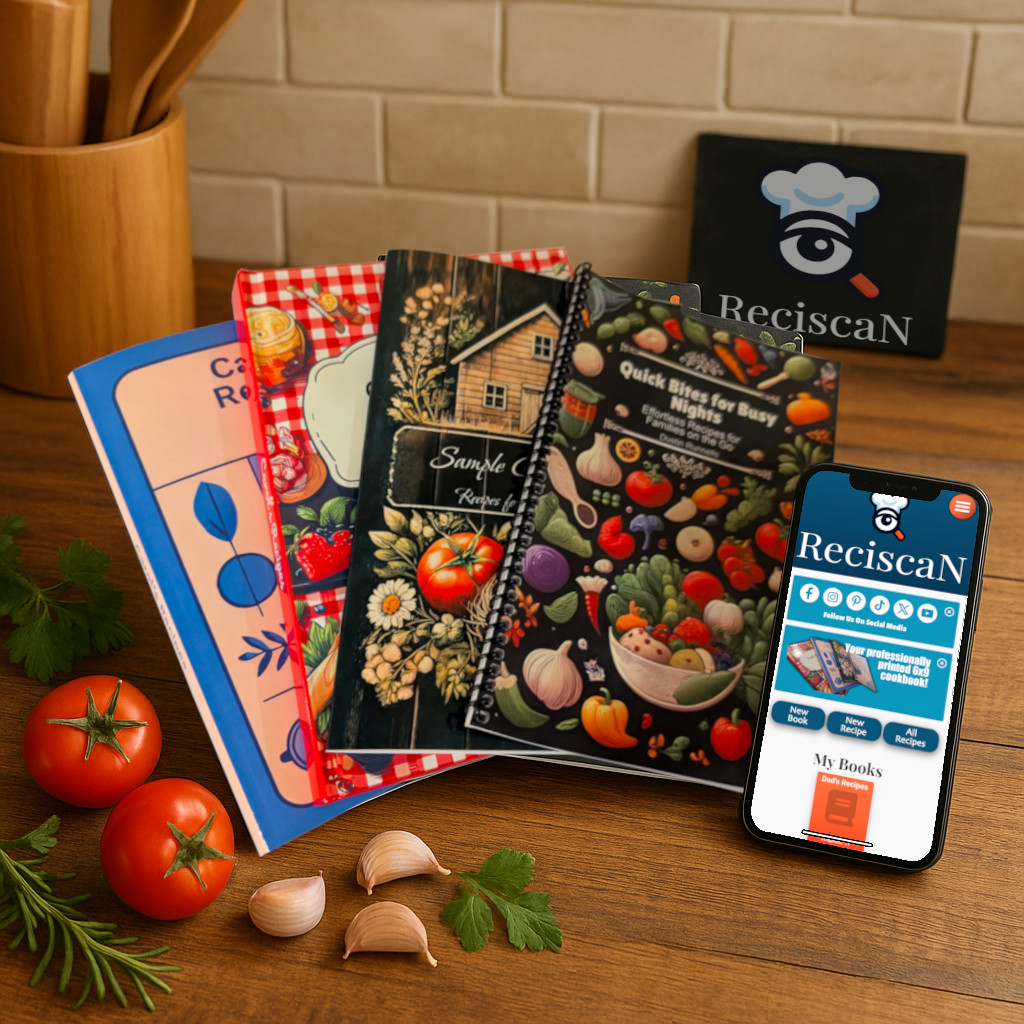
Supporters buy a printed cookbook filled with recipes and stories from the group.
See the finished product
Flip through a real team cookbook and see how contributor recipes become a polished product supporters can use, share, and feel proud to purchase.
A 1:44 look at the custom covers, binding, recipe pages, sponsor content, photos, and back cover. Watch on its dedicated video page.
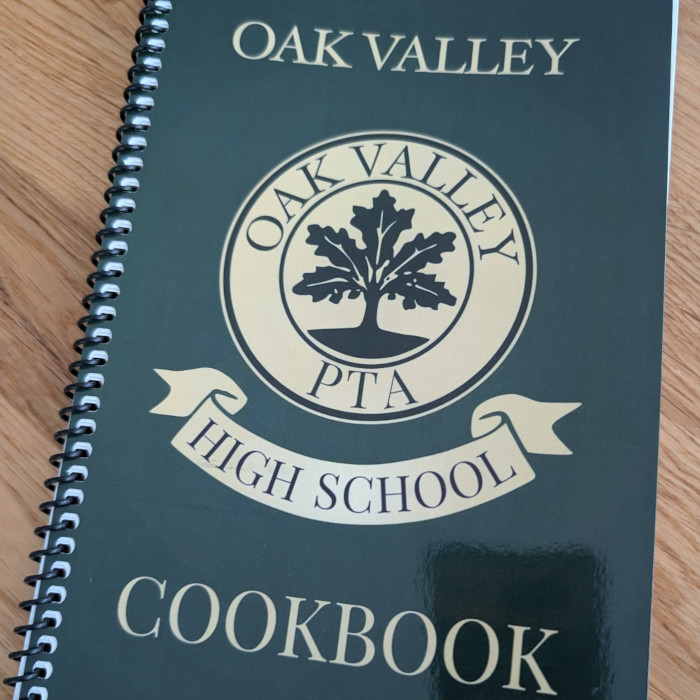
This is a real fundraiser example: Your group can personalize its own cover, chapters, recipe pages, photos, acknowledgments, and custom content around the story you want the cookbook to tell.
Before you dive into creating your cookbook, use our calculator to set a goal and estimate how much profit your group can raise. HOW TO USE: Simply input the number of pages, your target total profit and whether your book will be printed in color or black-and-white and click "Calculate". Tune the number of books you think that you can sell OR alter the markup per book to see what it will take to meet your fundraising goals in different scenarios.
Start your cookbook online for free. The cookbook owner needs an active ReciScan subscription for custom covers, custom pages and recipe collection by Share Code.
When estimating the number of pages in your book, consider that each page will probably include 1 or 2 recipes and additional pages for content like a title page, table of contents, preface, and an “About the Authors” section. These features may affect your total page count, so be sure to factor them in as you plan.
Book Sales Required: 0
Base Price Per Book (Plus Pages): $0.00
Suggested Sale Price Per Book: $0.00
Total Printing Cost: $0.00
Total Revenue: $0.00
Profit Per Book: $0.00
Total Profit: $0.00
For an optional pledge campaign, use this estimate as the expected campaign price, then compare it with actual pledged copies before committing to a bulk quantity. If you are not using pledges, use the estimate to plan the quantity you expect to sell or distribute. A pledge page does not collect payment. If you later sell through the Seller Portal, storefront buyers pay for printing and shipping at checkout, so Total Printing Cost and Total Revenue are most useful for bulk fulfillment.
Recommended · Web portal
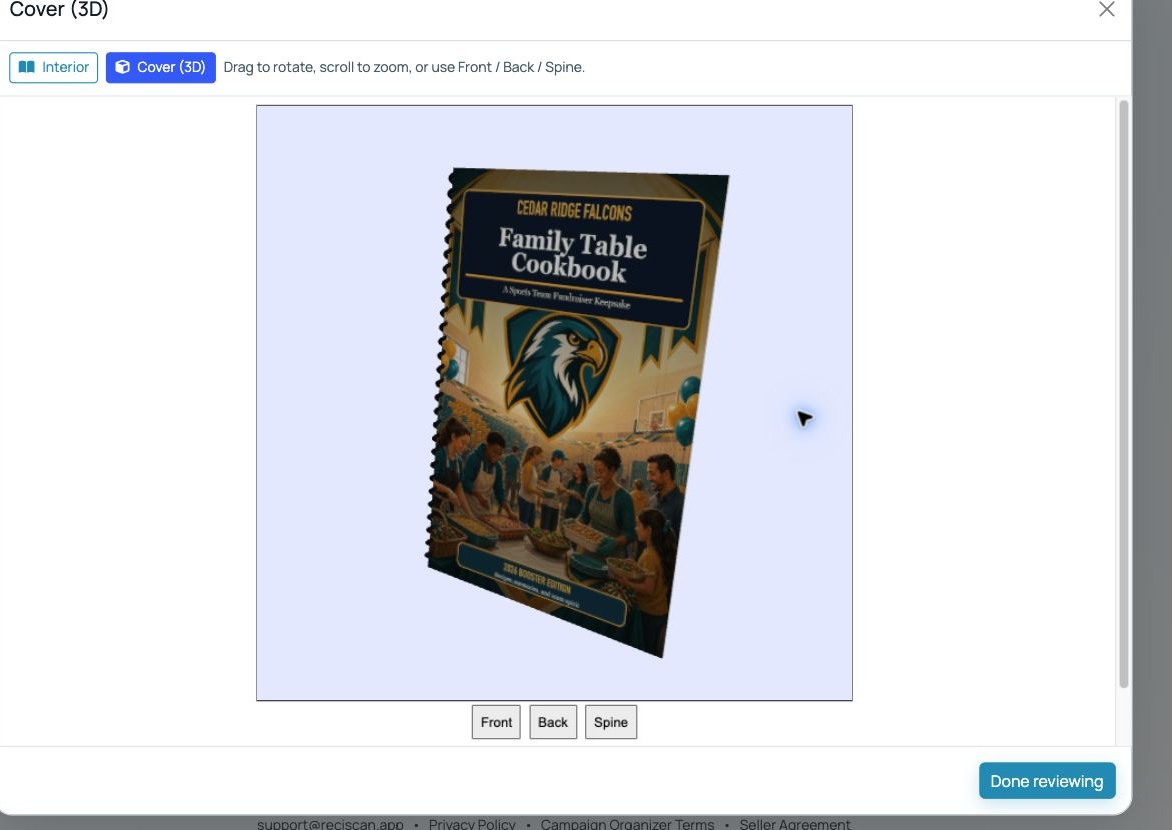
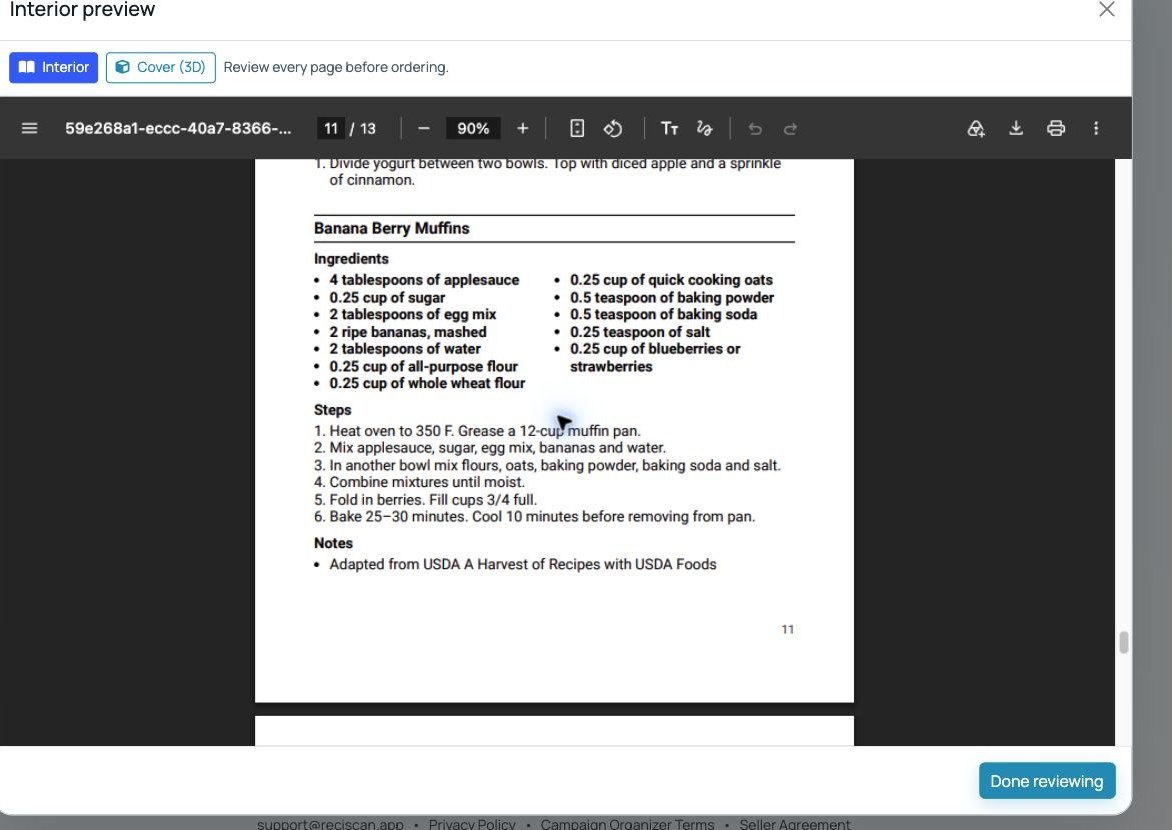
Your book is saved online, so your team can work on it from their own computers. This fictional Cedar Ridge example shows the process; select a screenshot to enlarge it.
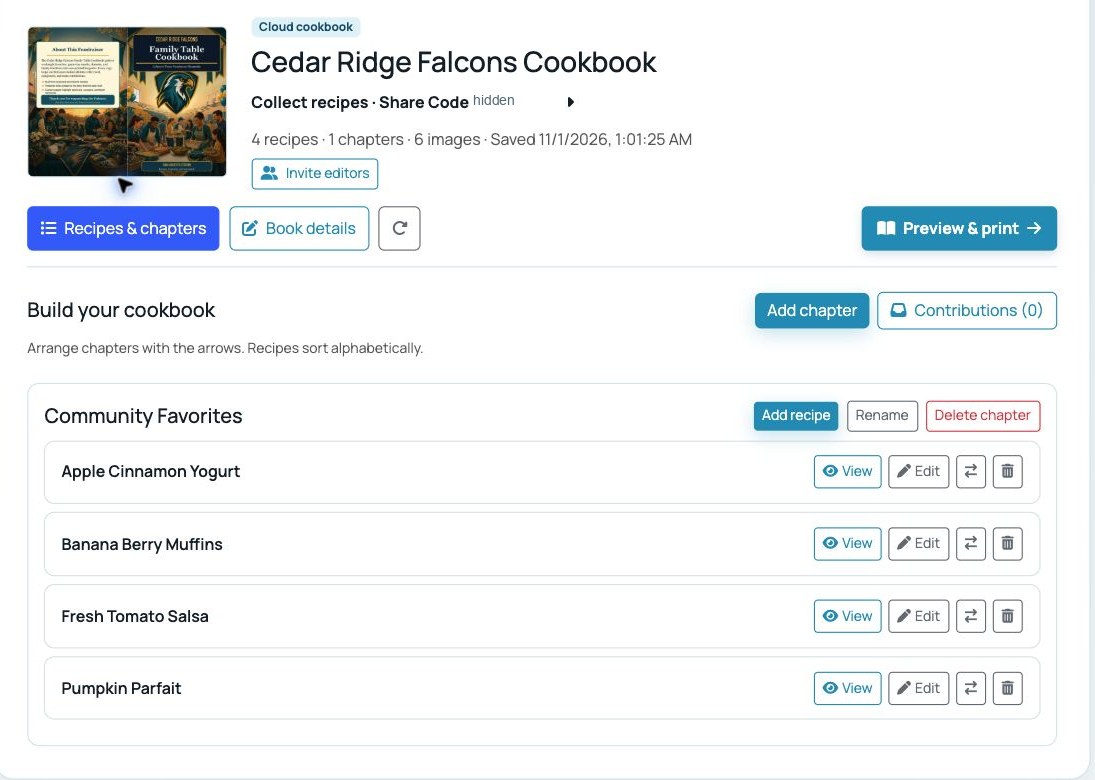
A small organizing team
Personal Recipe Drawers and orders remain private. Book recipes appear in each editor’s Drawer and can be copied to other books.
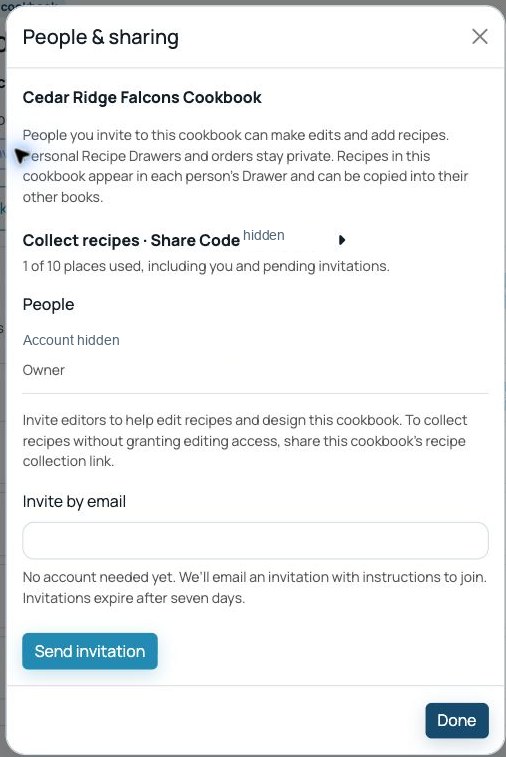
Gather your community
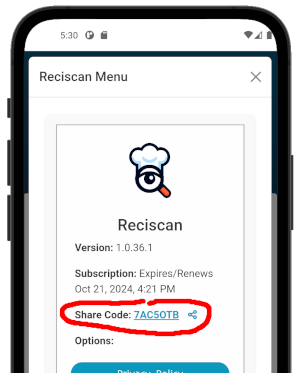
With an active owner subscription, expand Collect recipes beside the book’s Share Code and copy the collection link. Share it with families and supporters. They can submit through the web form without an account, or use the code in the app.
Looking for a theme? Explore cookbook fundraiser ideas or plan a school cookbook collection.
In your book, open Contributions, select a submission, review it, choose a chapter and select Add to cookbook. You can edit it after adding it or dismiss it instead. Refresh the book to check for new submissions.
The link allows recipe submission only; it does not give anyone access to edit the book. Collection pauses if the owner’s subscription ends; pending recipes remain available to the owner and editors.
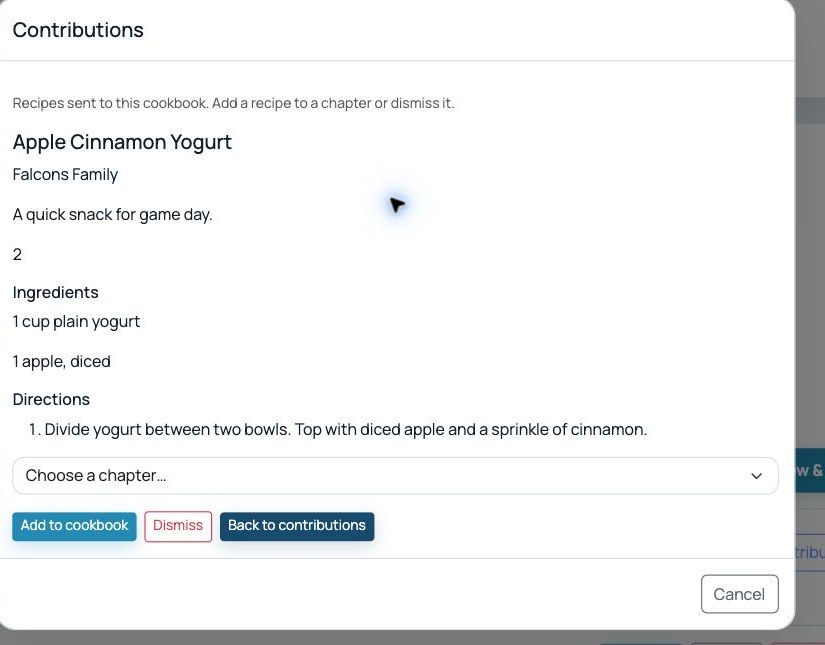
Make it yours
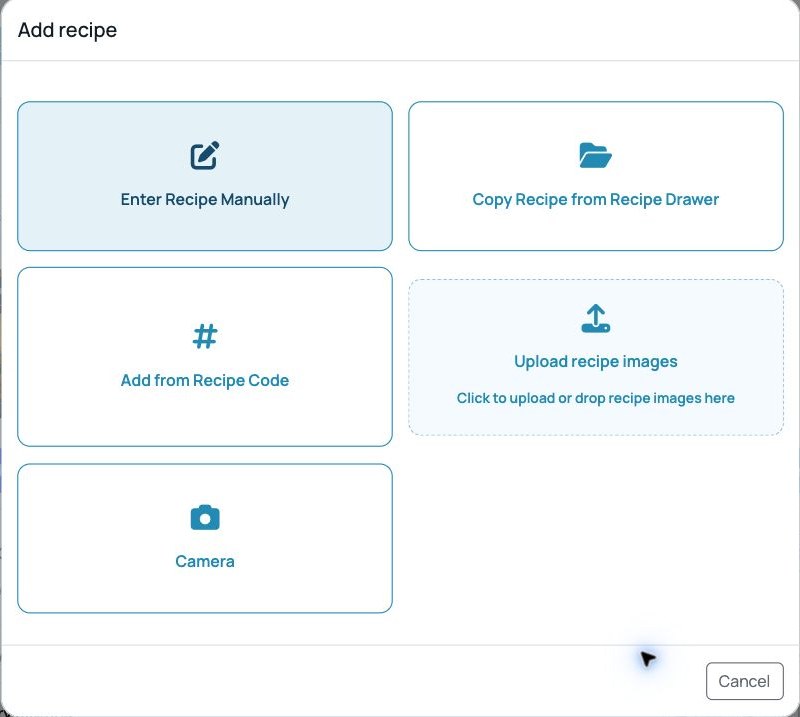
Choose Add recipe in a chapter to type a recipe, upload an image or use a camera. You can also copy a recipe from your Recipe Drawer. Review the scanned text and save any corrections.
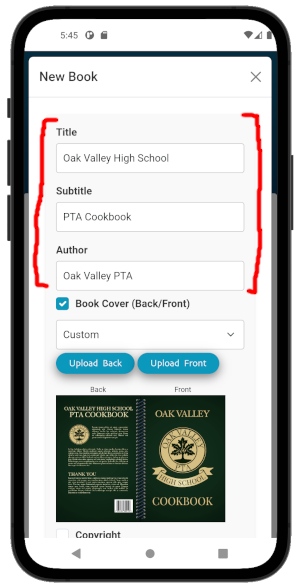
Open Book details → Edit book details to choose a cover and add a preface and About the Author page. With an owner subscription, choose Custom cover to upload your front and back designs; crop each image, use the designer, and save your details.
Under Pages & print → Custom pages, add an image page for sponsor thanks or coupons. Give it a title, choose its position, upload the artwork, and save. Check that offers, expiration dates and important text remain inside the print area.
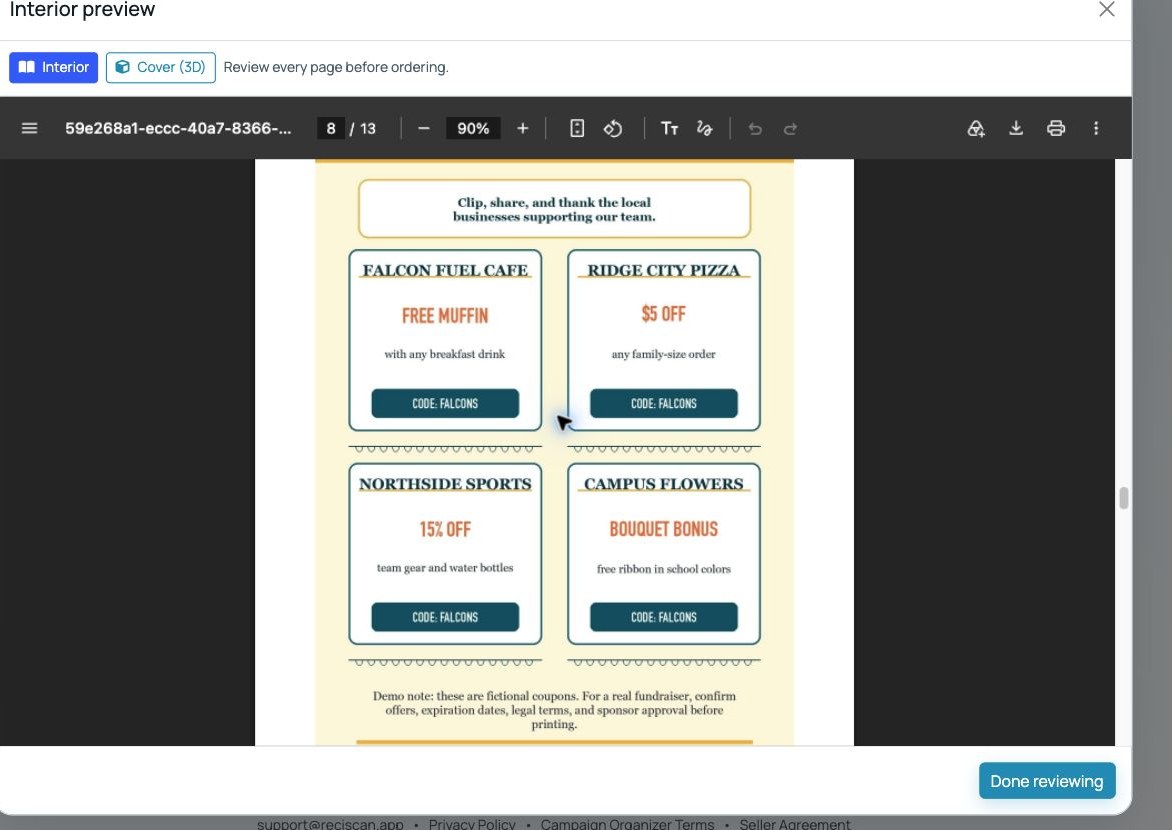
Choose Preview & print → Prepare previews. Open the interior and 3D cover, and check every page, photo, coupon and edge. If you make changes, prepare the previews again.
Order a proof copy before committing to a larger print run. Then decide whether to distribute books yourself or use one of the selling options above.
See printing considerations for fundraisers and the fundraiser planning overview when comparing your options.
Use this section only if you want to collect no-payment reservations before printing. If you are ready to place a bulk order or sell a completed book through a storefront, you can skip directly to those paths.
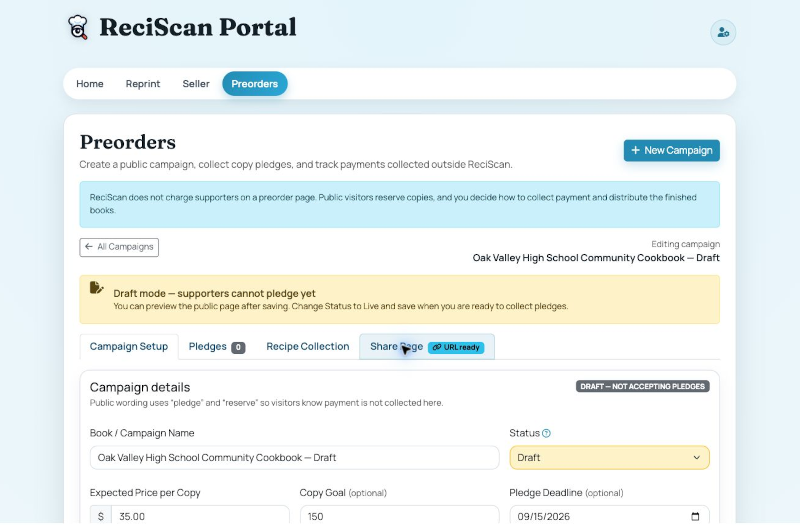
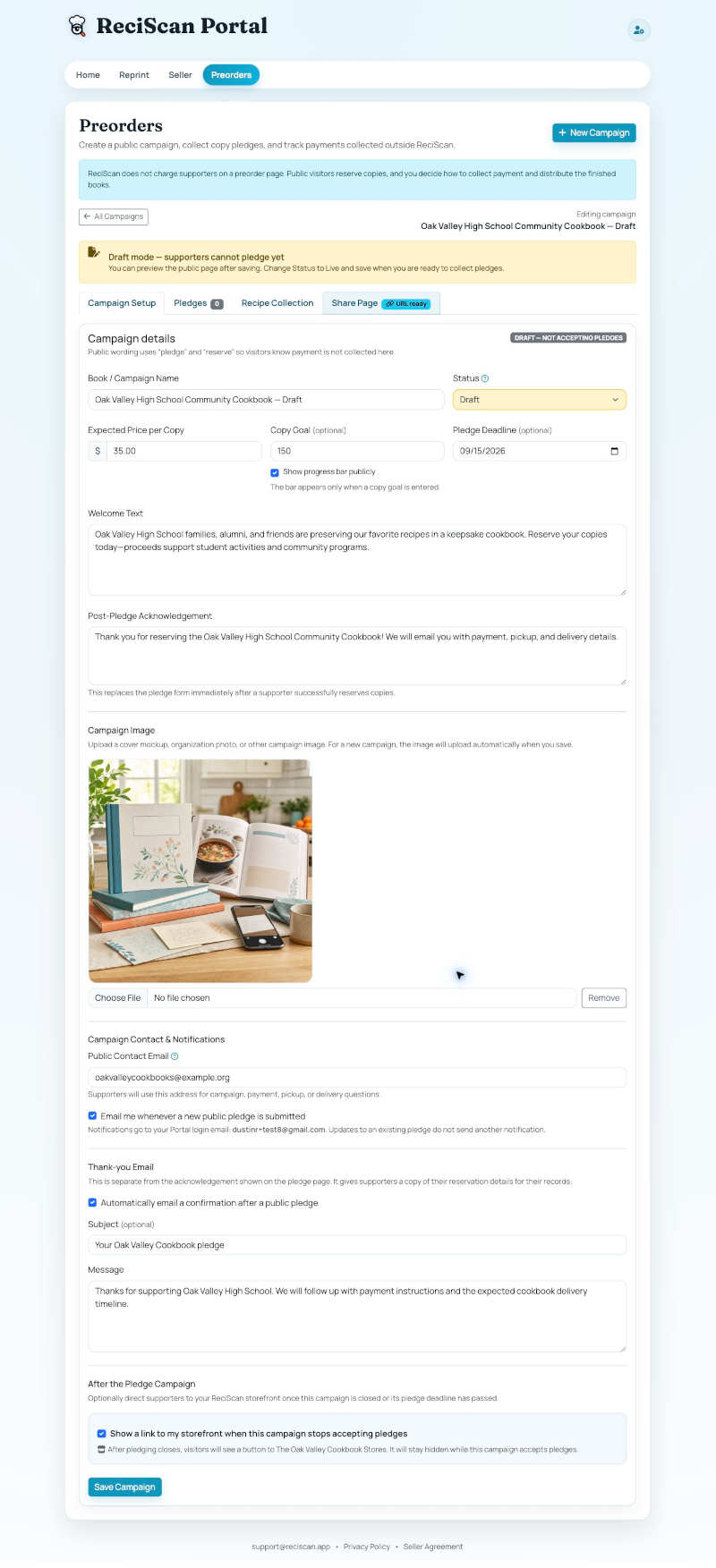
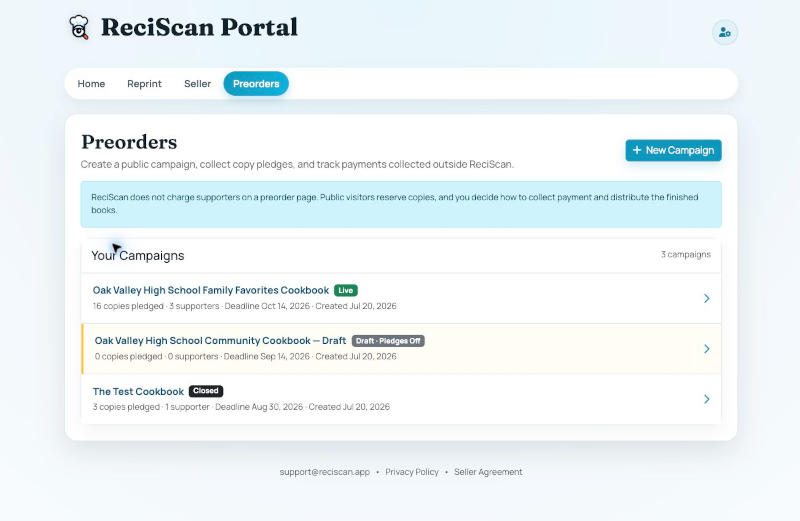
If you want to measure demand before printing, sign in to the ReciScan Portal, open Preorders, and choose New Campaign. A campaign can exist before your cookbook has been printed, so no Order ID or Seller account is required.
Change the status to Live and save only when you are ready for supporters to reserve copies.
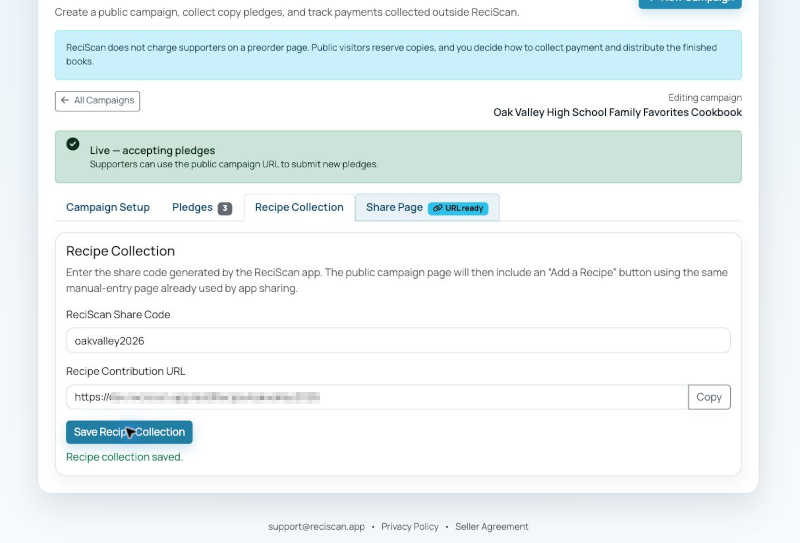
If your group is still gathering recipes, open Recipe Collection and enter your cookbook’s Share Code from the portal or app. The Portal generates the public Add Recipe URL and adds an Add a Recipe button to the campaign page.
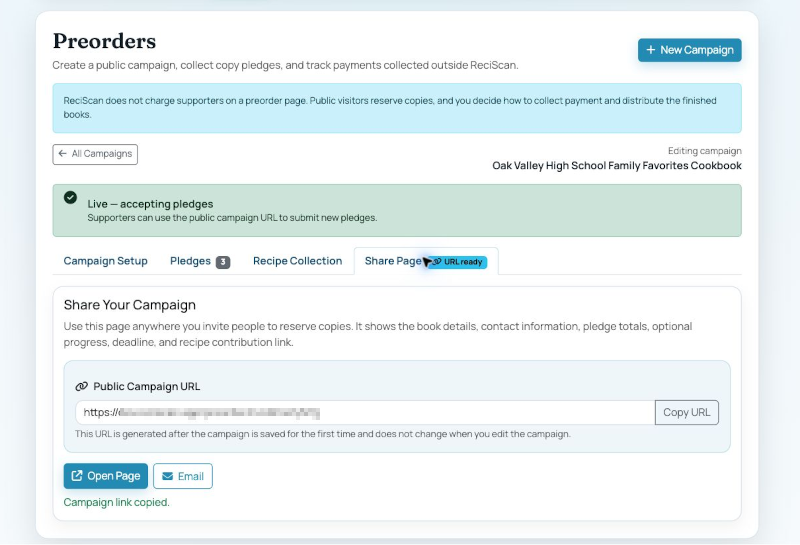
After saving the campaign, open Share Page. Copy the permanent public campaign URL for email, text messages, newsletters, QR codes, and social media. Preview the page before announcing it.
The public campaign link remains the same when campaign wording, goals, deadlines, or status are updated.
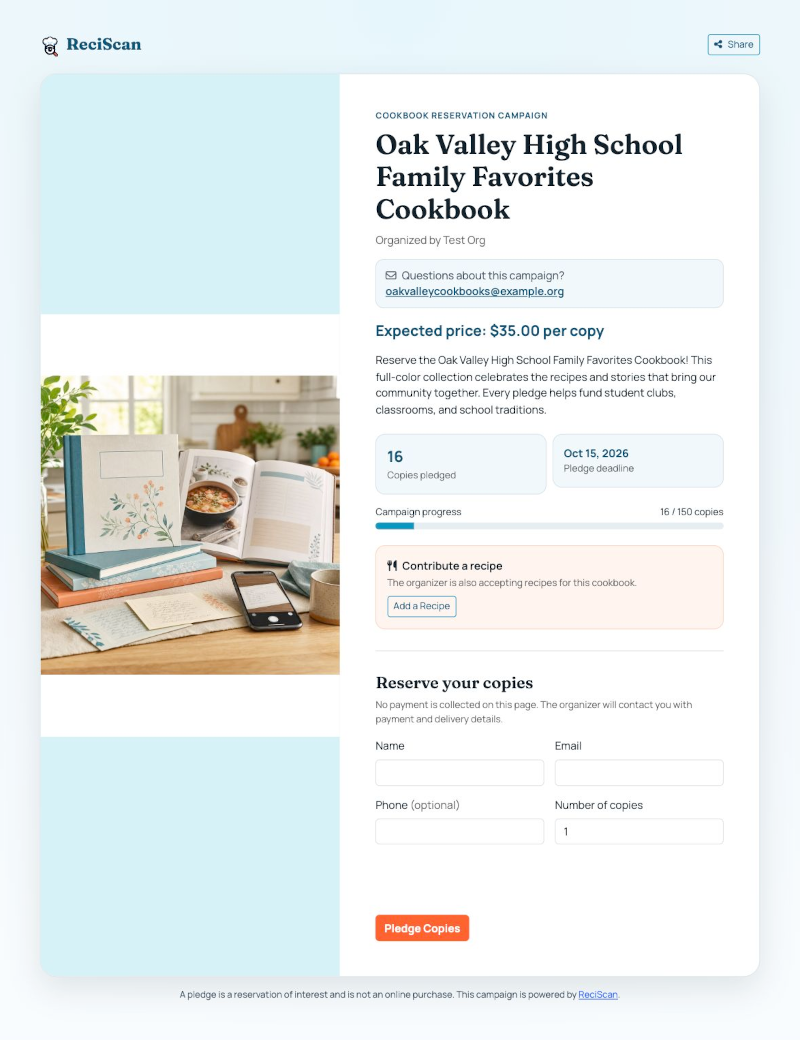
The public page shows the organizer, expected price, public contact email, campaign story, copies pledged, optional deadline and progress bar, and optional recipe contribution link.
Supporters enter their name, email, optional phone number, and requested quantity. ReciScan records the pledge but does not ask for payment information or charge a card.
Each email address can submit one public pledge per campaign. A supporter who needs a change should contact the campaign email so the organizer can edit the existing pledge.
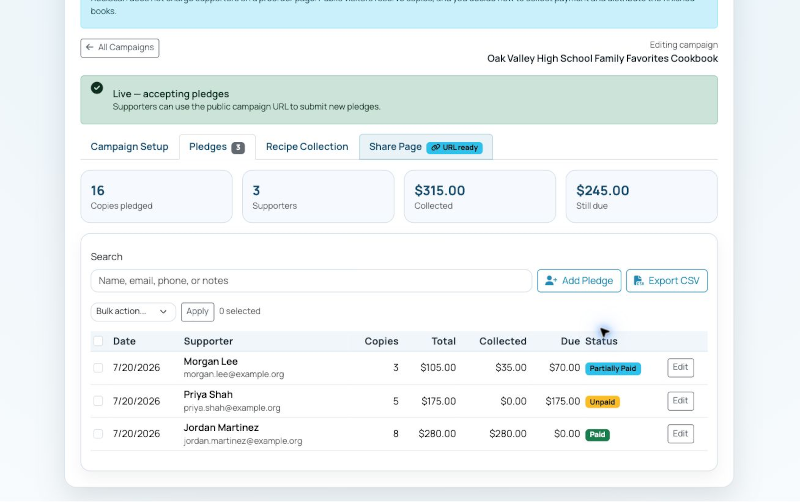
Use the Pledges tab as the organizer's working list. Summary cards show supporters, copies pledged, money recorded as collected, and the estimated amount still due.
Payment fields are organizer-maintained records. ReciScan does not receive or verify money collected outside the platform. Protect exported supporter information and use it only to run the campaign.
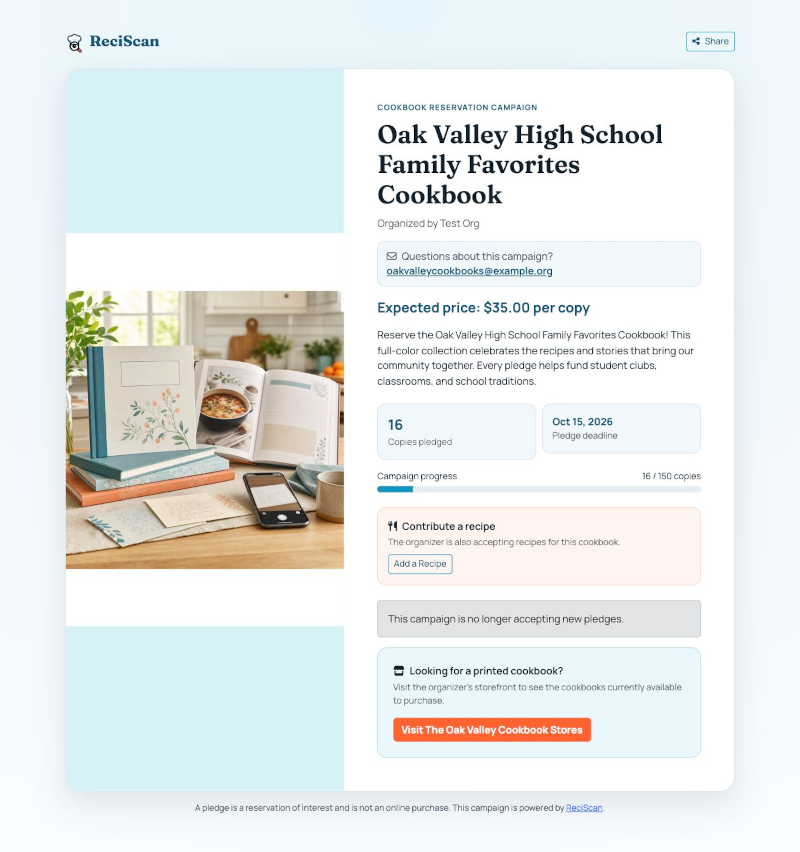
If you ran a campaign, its pledge form closes automatically at the end of the selected deadline date while the public campaign page stays online. The Portal status remains Live until you change it, so set the campaign to Closed when you are finished collecting pledges.
For ongoing sales, with or without a pledge campaign, complete Stripe Seller onboarding, save a storefront, and add the finished cookbook using the Order ID from its successful print order. If you used pledges, you can also enable the campaign's optional storefront handoff.
Create your cookbook online, invite your team, and choose the fundraiser path that fits your group.
Prefer a phone or tablet? Get the free app: