The ReciScan Blog
How to Sell and Promote Your Cookbook: 3 Ways to Get Started
Turn your cookbook into something readers can buy and follow. Start a ReciScan storefront, export Amazon KDP files, and share your story on cookbook.store.

You’ve gathered the recipes, added the stories, and shaped them into a cookbook. Now you’re ready to put it in someone else’s kitchen.
Open your cloud cookbook in the ReciScan Portal and choose Preview & print. Alongside your book previews, you’ll find three ways to take the next step: sell printed copies through ReciScan, prepare an Amazon edition, and introduce your book to readers on cookbook.store.
1. Sell your cookbook directly with ReciScan
Want a link you can send to friends, family, supporters, or customers? A ReciScan storefront gives your cookbook a place to sell, with ReciScan handling checkout, printing, and shipping.
Expand Sell your cookbook on ReciScan, then choose Read the seller guide. The guide walks you through connecting Stripe for payouts, creating your storefront, and adding a cookbook from an eligible successful print order. You choose your markup and share your storefront or individual book link. Seller setup is available in the United States, United Kingdom, and Canada.
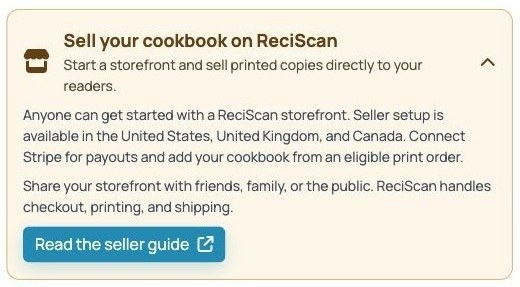
Start here for a cookbook you want to sell directly to your own readers.
Follow the ReciScan seller guide →
2. Self-publish a print edition on Amazon with KDP
If you’d like readers to buy your cookbook on Amazon, Kindle Direct Publishing (KDP) offers paperback and hardcover publishing. Amazon prints and ships copies as readers order them, so you can offer a printed book without keeping a stack of inventory. See Amazon’s introduction to KDP.
Get your publishing files from ReciScan
ReciScan subscribers can open Sell your cookbook on Amazon in Preview & print and choose Generate KDP package. Download and unzip the package to find:
- manuscript.pdf — the pages inside your cookbook.
- cover.pdf — the complete paperback cover, including the front, back, and spine.
- KDP-settings.txt — the settings to use when setting up your Amazon edition.
- hardcover-cover.pdf — also included for books with 76 or more finished pages, for a hardcover edition using the same manuscript.
The export supports 24–500 finished pages. Use the page count and settings in your downloaded package when preparing your listing.
Choose your format and introduce your book
Sign in at Amazon KDP, complete your publishing account details, and select Create from your Bookshelf. Choose Create paperback or, if your package includes the hardcover cover, Create hardcover.
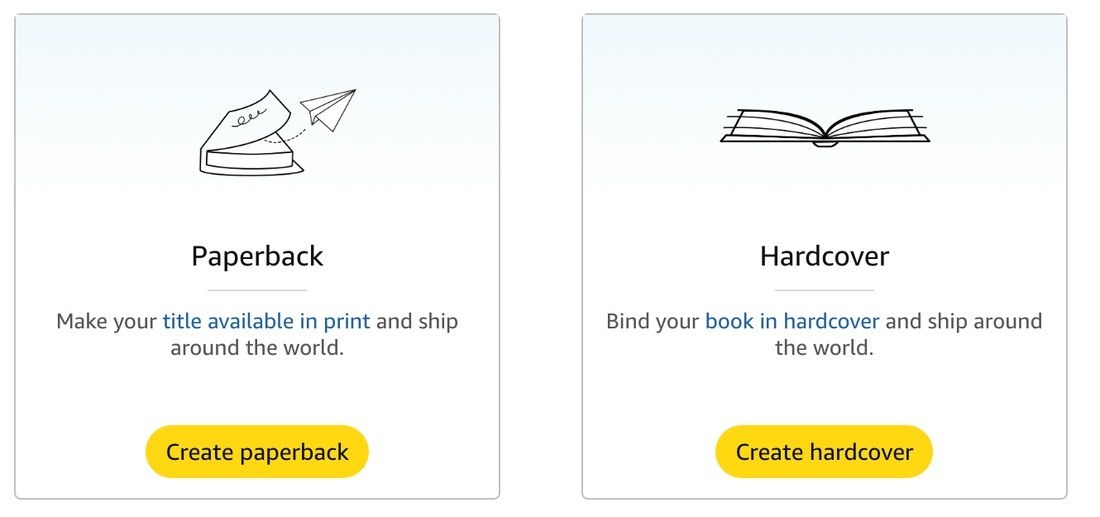
Choose the print format you want readers to buy.
Enter your title, author name, description, keywords, and categories. Keep the title and author consistent with your cookbook. Make the description useful: is this a collection of family favorites, a community fundraiser, or a guide to the food you love to cook? Amazon’s book setup guide explains these fields.
Match the settings and upload your files
On KDP’s Content screen, use 6 × 9-inch trim, white paper, and No Bleed for the interior. Match the ink option to your ReciScan export: premium color for a color interior, or black and white for a black-ink interior. Choose the matte or glossy cover finish you prefer.
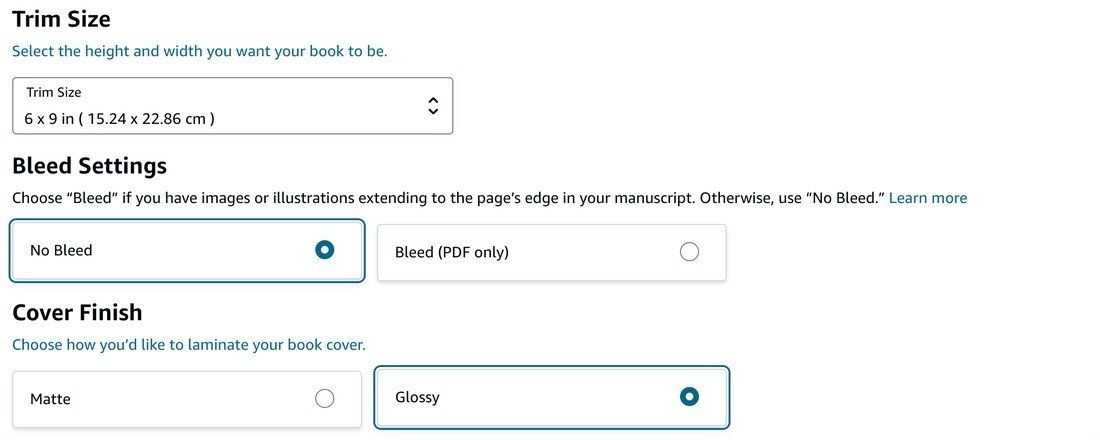
Match your downloaded settings, then choose your cover finish.
For the ISBN, you can use KDP’s free ISBN or supply your own. Paperback and hardcover editions each need their own ISBN. Compare Amazon’s ISBN options.
Upload manuscript.pdf in the Manuscript section. Under Book Cover, select Upload a cover you already have, then upload cover.pdf for paperback or hardcover-cover.pdf for hardcover. Leave the “my cover has a barcode” box unchecked so Amazon can add one.
Leave room for the barcode on your back cover. ReciScan’s KDP export automatically reserves a 2 × 1.2-inch white box near the bottom-right of the back cover, close to the spine. When choosing or creating your back-cover artwork, simply keep important text, faces, logos, and other details out of that area. You don’t need to create a barcode or add the white box yourself—ReciScan prepares the space and Amazon adds the barcode. You can see its placement in the exported cover and KDP’s Print Previewer. Read Amazon’s barcode guidance.
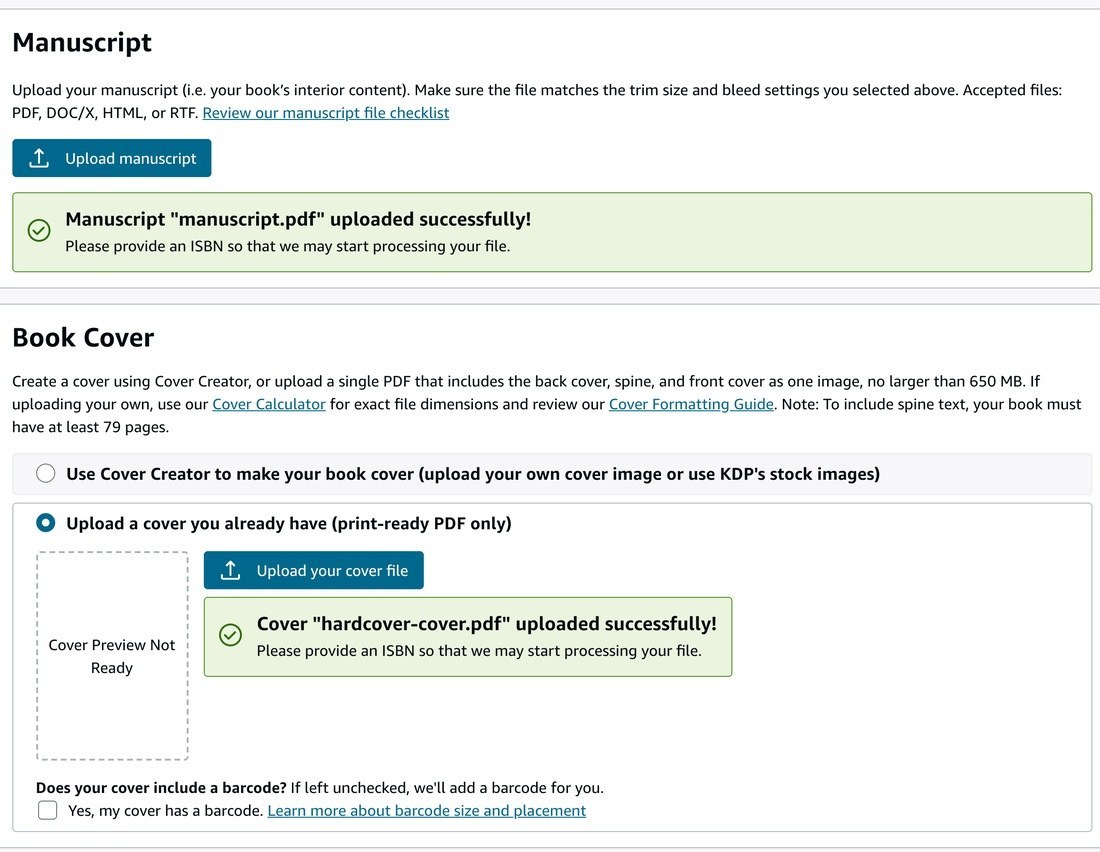
Hardcover example: the manuscript and cover are uploaded separately. Use cover.pdf in the same cover field for a paperback.
Preview, price, and publish
Open KDP’s Print Previewer to check the cover and interior, including photos, recipe breaks, and page edges. A printed proof is a useful way to see how your cookbook feels in the kitchen before sharing it widely. Amazon explains previews and proof copies here.
Then choose your sales territories and list price. KDP shows printing costs and estimated royalties; its Printing Costs and Royalty Calculator can help you compare options. When your listing is ready, submit it for publication through KDP. Once the Amazon page is live, you have another purchase link to share.
3. Help readers discover your book on cookbook.store
Your cookbook has a story beyond its cover. cookbook.store gives you a place to introduce it, tell readers what makes it special, and point them toward a place to buy it.
Choose Promote your cookbook and tell your story on cookbook.store from Preview & print. On cookbook.store, sign in with an author account, open My cookbooks, and select Add cookbook.

Add cookbook starts a guided setup for your listing.
Bring in a ReciScan or Amazon book
You can start with a link to a book you’re already selling:
- For ReciScan: choose It’s on ReciScan, paste your public storefront or cookbook product URL, and select Find cookbook. Use the public selling link for your book, rather than the Portal editing link.
- For Amazon: choose It’s on Amazon, paste your Amazon product URL, and select Fetch book details.
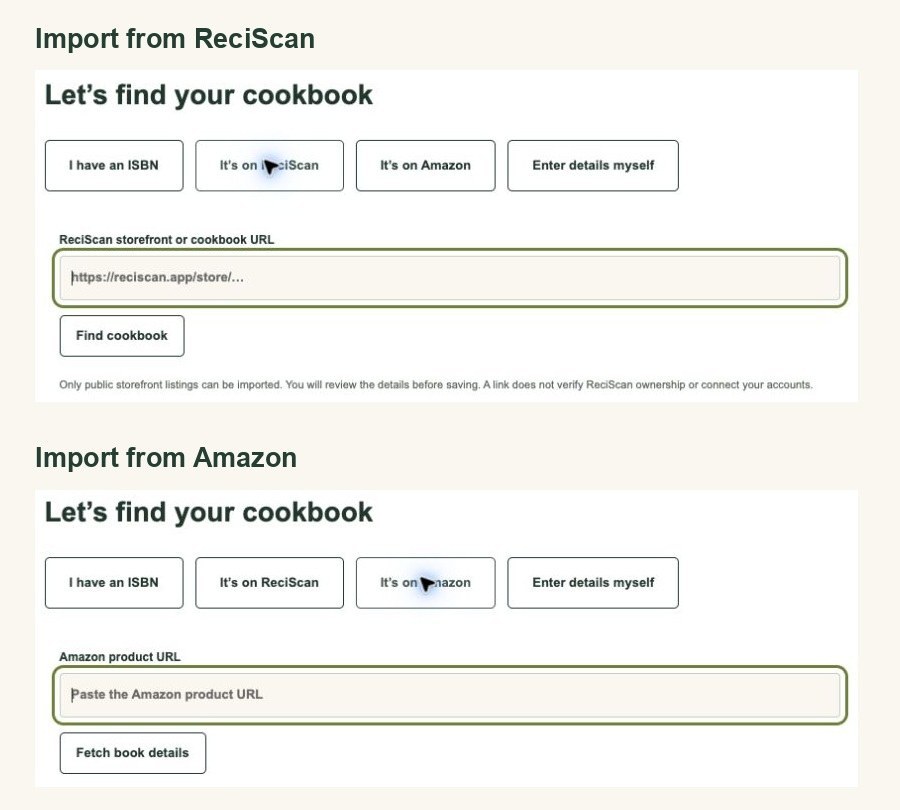
Start with either selling link, then review the details before saving your listing.
Follow the remaining setup steps and check the title, author, cover, description, and purchase link. Add a short introduction that gives readers a reason to open your book: who it’s for, which recipes to try first, or what inspired the collection. Choose public visibility when you’re ready for readers to find it, and save your cookbook.
Keep readers up to date with your author journal
Complete your public author profile, then open My journal to share updates. You could introduce a recipe contributor, tell the story behind a favorite dish, share a look inside the book, or announce a new edition. Readers can save books and follow updates, giving you a place to keep the conversation going after launch. Explore cookbook.store’s author features.
For a first post, try a simple introduction: why you made this cookbook, who helped bring it together, and which recipe you hope readers cook first. Pair it with a photo and a link to your book.
Your next step can be small: open Preview & print, choose where you’d like to sell, and give readers a link to your cookbook.