The ReciScan Blog
How to Add Photos and Memories to Your Cookbook with Custom Pages
Create a family memory page in Canva or another design tool, then add it to your printed ReciScan cookbook. Follow our illustrated walkthrough and find more custom-page ideas.
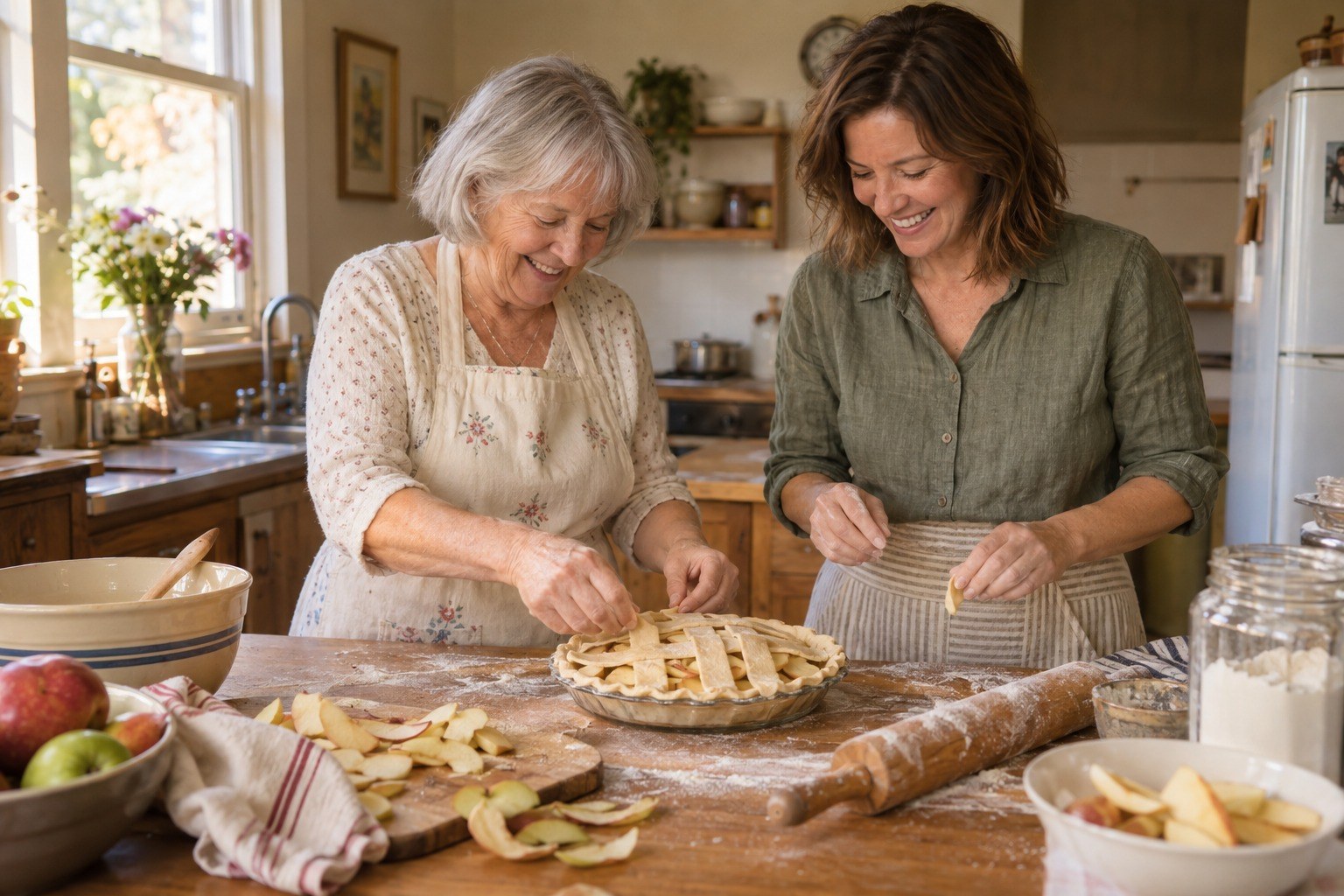
A family cookbook can preserve more than the way a dish is made. It can hold the people, occasions, and small stories that made those recipes worth saving.
ReciScan's Custom Pages let you add a finished page design to your printed cookbook. In this walkthrough, we'll make a warm photo-and-memory page, then place it after the table of contents in the Sample Cookbook, just before the recipes begin.
We used Canva on Android for the example, but Canva is only one option. The same ReciScan steps work with a page designed in another tool and saved as an image.
What you'll need
- A ReciScan subscription: Custom Pages are a subscriber feature, with up to five custom pages per cookbook.
- A cookbook to edit. We're using the Sample Cookbook; you can use your own family or fundraiser cookbook.
- One or two photos and a short memory, dedication, or introduction.
- A design app that can save a finished page as an image. Our example uses a blank Canva design, uploaded photos, basic text, and a solid background, without premium templates or elements.
For best results, design a portrait image around 1500 × 2230 pixels or larger, keeping the same proportions. This is the custom-page image area, rather than the cookbook's full 6 × 9-inch trim size. ReciScan fits the image within the normal cookbook margins; it isn't a full-bleed page.
1. Create a blank portrait page
In Canva, start a new design with custom dimensions. Choose pixels, enter 1500 for the width and 2230 for the height, then create the design.

Set the proportions before adding photos or text.
We chose a soft ivory background, warm brown lettering, and a simple serif font. You can build a polished page with just those ingredients: a clear title, two photos, and a little breathing room.
2. Add the photos and a short memory
Add your photos from the gallery to the page. Resize and position them so they line up neatly, then add a title and a short paragraph. Our page has a small family-name label at the top, the title Around Our Family Table, a baking photo, a memory, and a Sunday-dinner photo.
Here's the example text:
Grandma Rose never measured the cinnamon. Anna learned her apple pie by watching, tasting, and asking questions. Sunday dinners brought the Bennetts together, and someone always stayed for one more slice.
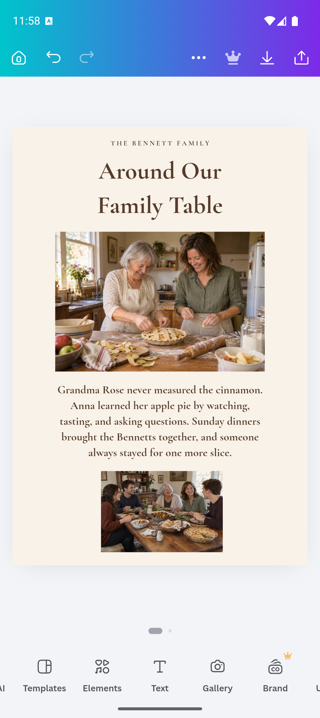
A warm background and consistent spacing make a simple layout feel special.
Keep the writing short enough to read comfortably in print. Leave space around the edges, and avoid placing names or faces right against a crop boundary. For this design, we used Cormorant Garamond, an ivory background (#F8F2E8), and dark brown text (#563C2C). A similar serif font will work just as well.
3. Save the finished design as an image
Download or export the page as a PNG image and save it to your device's photo gallery. In our Android Canva walkthrough, the download saved the finished page to the camera roll.
If you create the design on a computer, transfer the exported image to the device where you use ReciScan. Keep the original editable design too, so you can fix a name or change a photo later.
4. Choose where the page belongs in ReciScan
Open your cookbook in ReciScan and choose Edit. Scroll to Custom Pages, then open its page-management controls.
Custom pages go between the cookbook's fixed sections. For this family introduction, choose After TOC and tap Add Image Page. This puts the memory page after the table of contents and before the recipes, so readers meet the family before turning to the food.
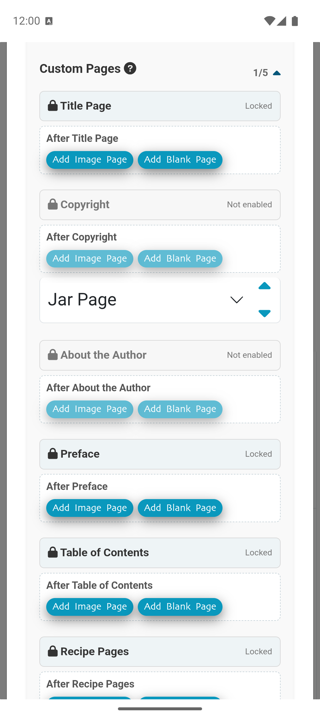
Choose the location that matches the purpose of the page.
Select the exported image from your gallery. When the cropper opens, check the whole design carefully. In our example, the initial crop would have cut off the small family-name label at the top. We used the maximize crop control at the top center to include the full design, then accepted it with the green check mark.
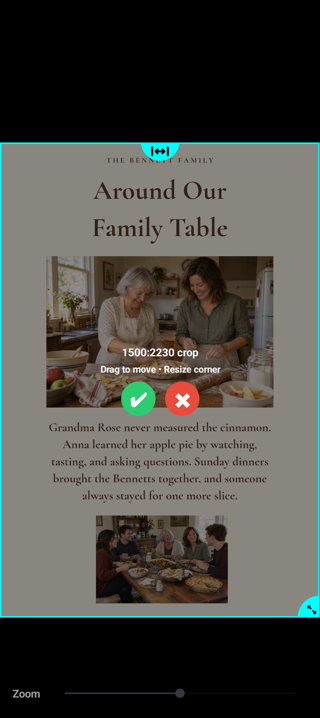
Make sure the crop keeps every heading, face, and line of text you want to print.
5. Add a table-of-contents title and save
If you'd like readers to find the page from the contents list, select Include in Table of Contents and enter a title. We used Around Our Family Table. That title also becomes the running header for the custom page.
The optional right-hand-page setting can place the design on a right-hand page, adding a blank page when needed. We left it off for this example. Choose it when the page's placement matters more than keeping the page count down.
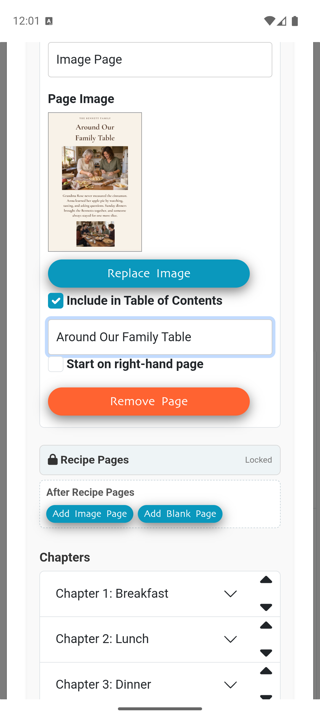
Give the contents entry a useful title, then save your cookbook changes.
6. Preview the cookbook before printing
Open the cookbook's interior PDF preview. Check that the image is complete, the text is legible, the page is in the right place, and the contents entry points to it.
In our Sample Cookbook, Around Our Family Table appeared on page 8, and the Breakfast recipes began on page 9. Your page numbers will depend on the sections and pages in your own book.
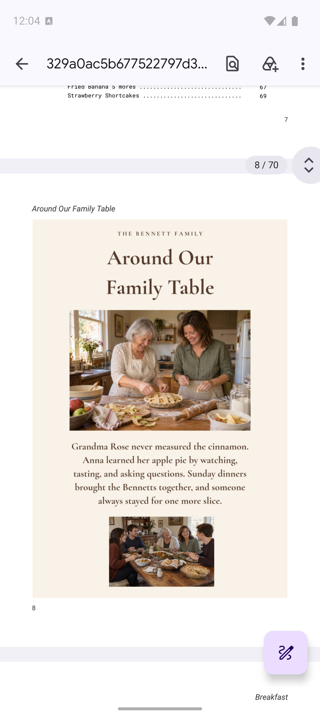
The finished custom page sits inside the cookbook's normal margins, with its title above and page number below.
Our example cookbook already had Color Interior enabled. If you choose a black-and-white interior, ReciScan converts custom-page images to grayscale in the PDF. Review the contrast in that preview, especially if your design uses pale text, colored backgrounds, or photos with subtle detail.
Canva is one option, not a requirement
ReciScan imports the finished image, so you can use whichever design tool feels comfortable. A photo editor, a presentation app, or a desktop page-layout program can all be part of the workflow, provided you can export or convert the final page into a suitable image.
You can also scan a handmade scrapbook page or a handwritten dedication. Crop it cleanly, check its proportions and resolution, and preview the result in ReciScan. If your tool produces a PDF, export or convert the page to an image before adding it through Add Image Page.
The goal is a clear, readable printed page. You don't need a complicated template or a paid design subscription to make one.
More ways to use custom pages
- A dedication or tribute: Pair a portrait with a few words about the person whose recipes inspired the book. Place it near the front.
- A family history or timeline: Add a family tree, old kitchen photograph, or a short story about how a favorite tradition began.
- A holiday or reunion collage: Bring together photos, names, dates, and a brief account of the gathering.
- Meet the contributors: Include a group photo and introduction for the cooks behind a community cookbook.
- Fundraiser acknowledgements: Thank volunteers, donors, or sponsors, or introduce the cause the cookbook supports.
- A coupon or bonus page: Create a clearly labeled offer page for a fundraiser, with permission from participating businesses and any terms or expiry dates included.
- A keepsake at the back: Finish with a handwritten note, a toast, or a photo of everyone around the table.
Choose a location from the available section slots that helps the page feel like part of the book. Preview the full cookbook after every addition: a little context beside the recipes can turn a collection of dishes into a keepsake people will want to pass on.